
MainWP Team Control Extension
Give each team member a role limited to the MainWP features, add-ons and child sites their work needs.


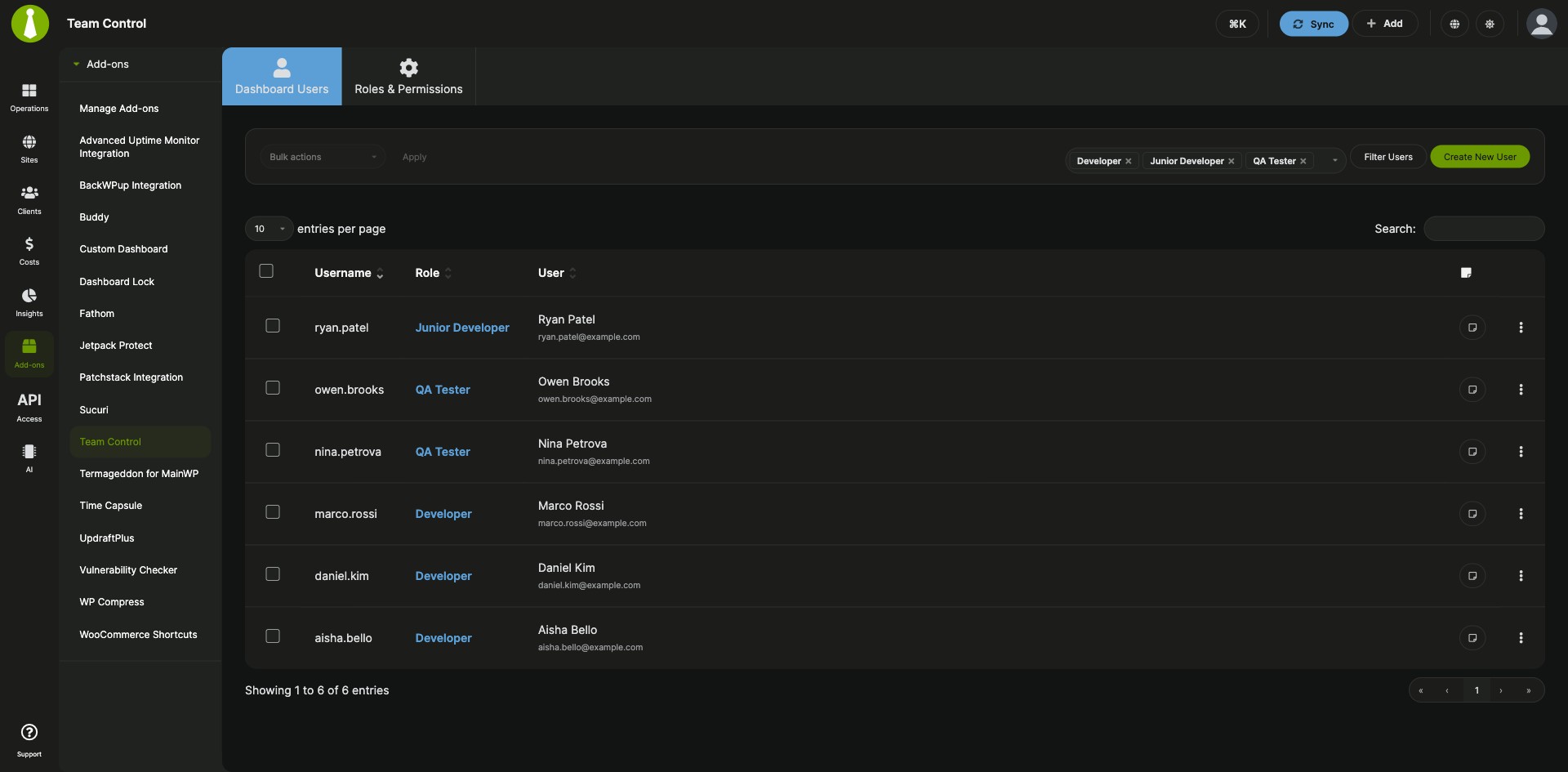
Custom MainWP roles that match each team member’s job
The Team Control Extension is a Pro MainWP add-on that gives each team member a custom role limited to the MainWP permissions, add-ons and child sites their work needs. Roles apply to the users of your MainWP Dashboard site, and registered Team Control owners manage the roles and users.
Sharing one Dashboard across a team
Team members who share one MainWP Dashboard often need different access to features and client sites. A full administrator account on your Dashboard site reaches every client site on it, and the alternative is making their changes yourself. The Team Control Extension lets you create a role for each job, pick the MainWP permissions, add-ons and child sites it covers, and assign it to users on your Dashboard site from one screen.
Features
The Team Control Extension decides what each role can do, which add-ons it can open, and which child sites it can work on.
| Feature | What it means for you |
|---|---|
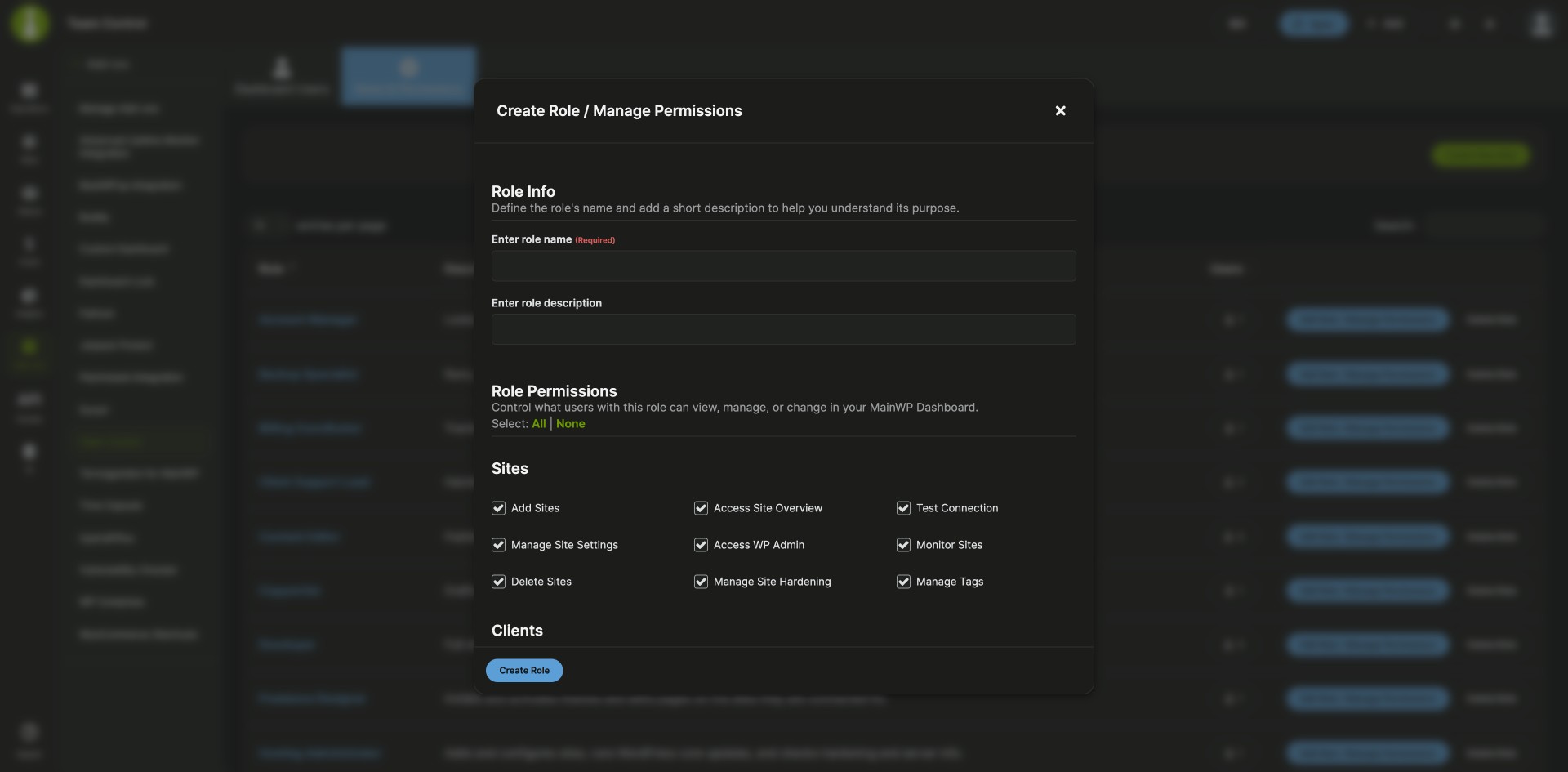
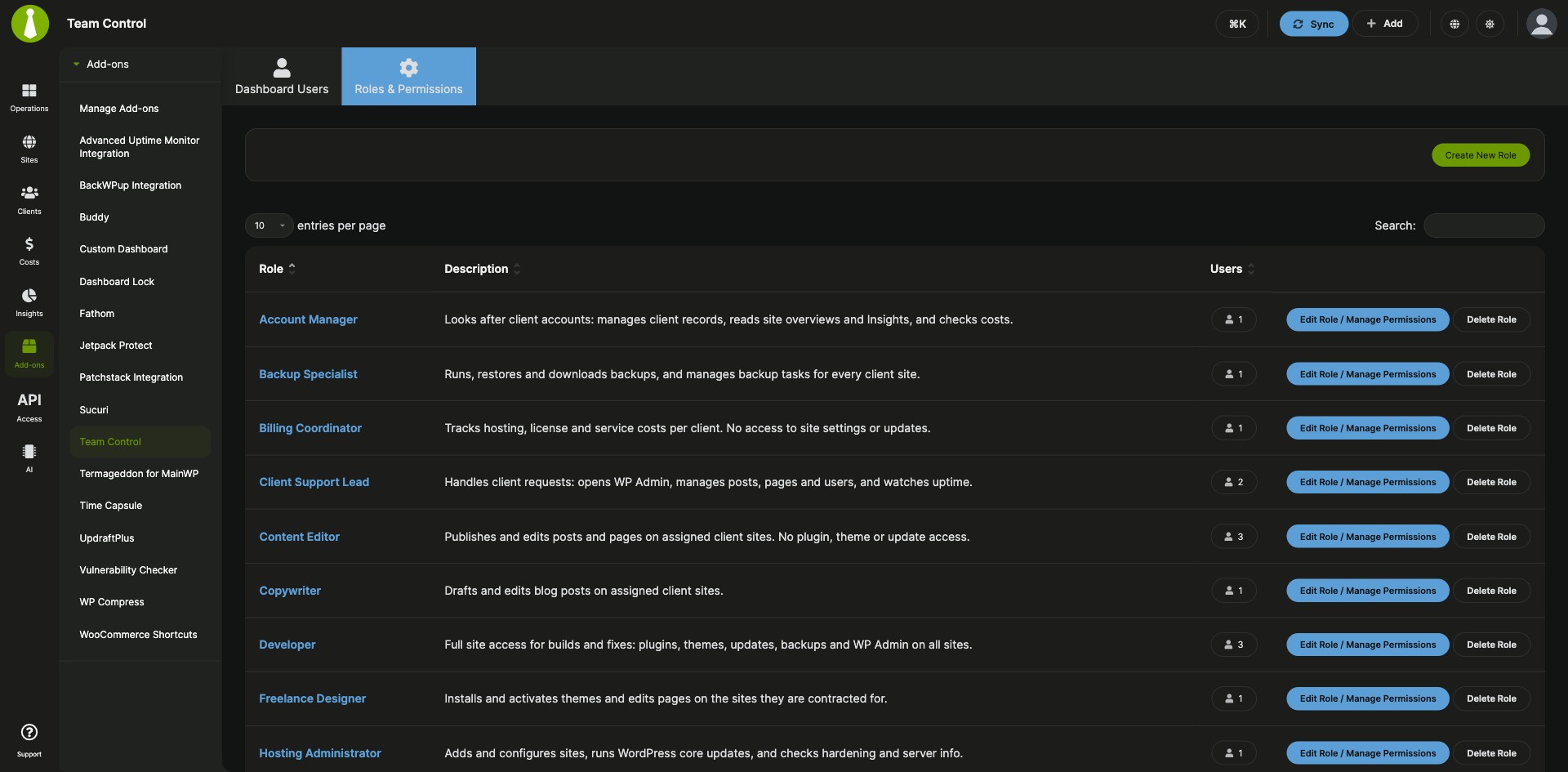
| Custom roles | Create a role with a name, a description and its permissions in one modal, then review, edit or delete roles on the Roles & Permissions tab. |
| Access scoped to MainWP | Users with a custom role reach the MainWP pages, add-ons and child sites their role allows, plus the WordPress Dashboard home page and their own profile. User roles on your child sites stay as they are. |
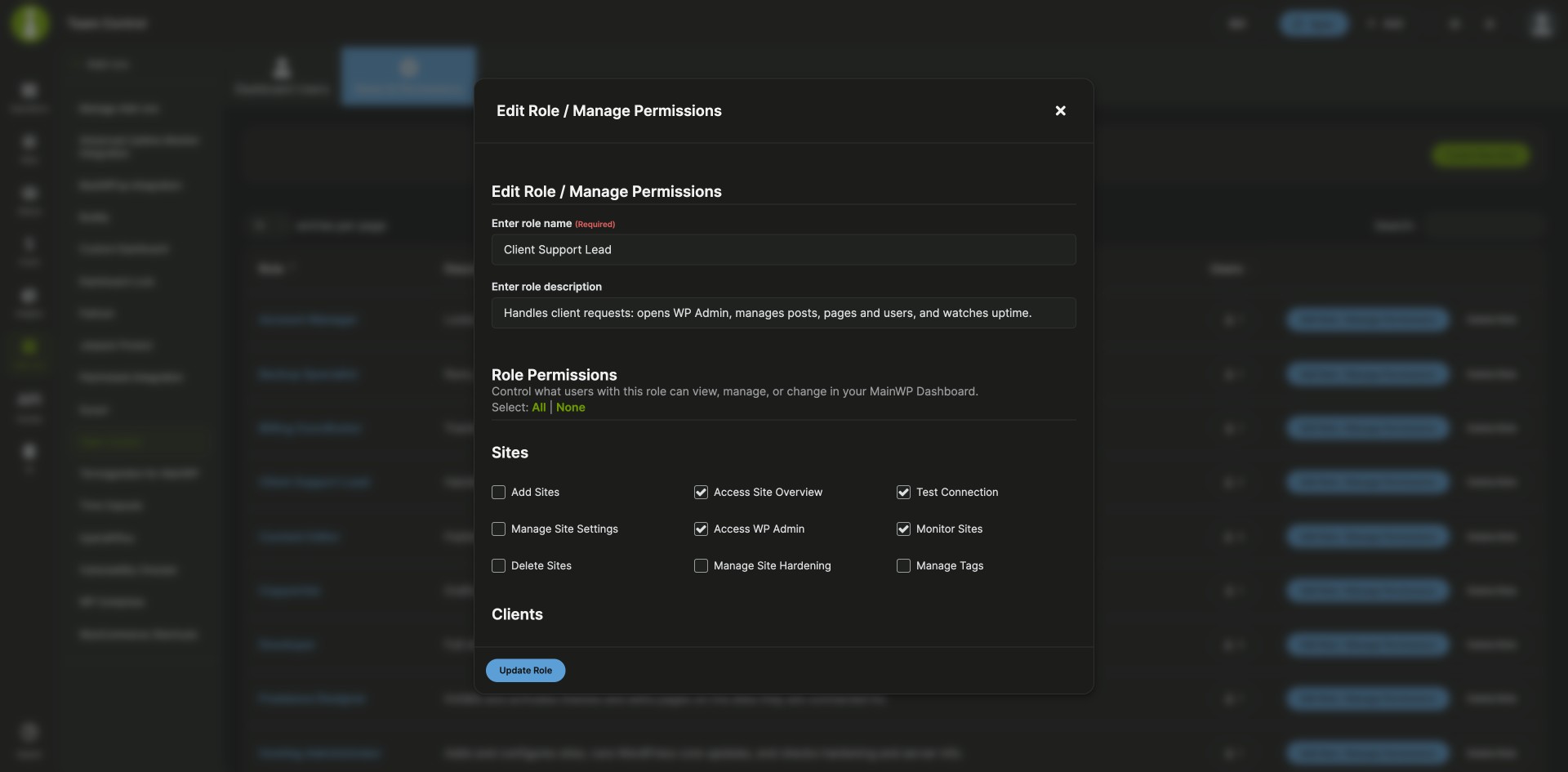
| Permissions per role | Choose which MainWP Dashboard actions the role can perform, including the Backups group for running, restoring and downloading backups, and Access WP Admin for opening a child site’s WordPress admin through MainWP. |
| Allowed add-ons and sites | Pick the add-ons a role can use and the child sites it can work on. Select by Site picks sites one by one; Select by Tag also covers every site with the chosen tags. |
| Several roles per user | A user with more than one active role gets the combined permissions of all of them, including site and tag access. |
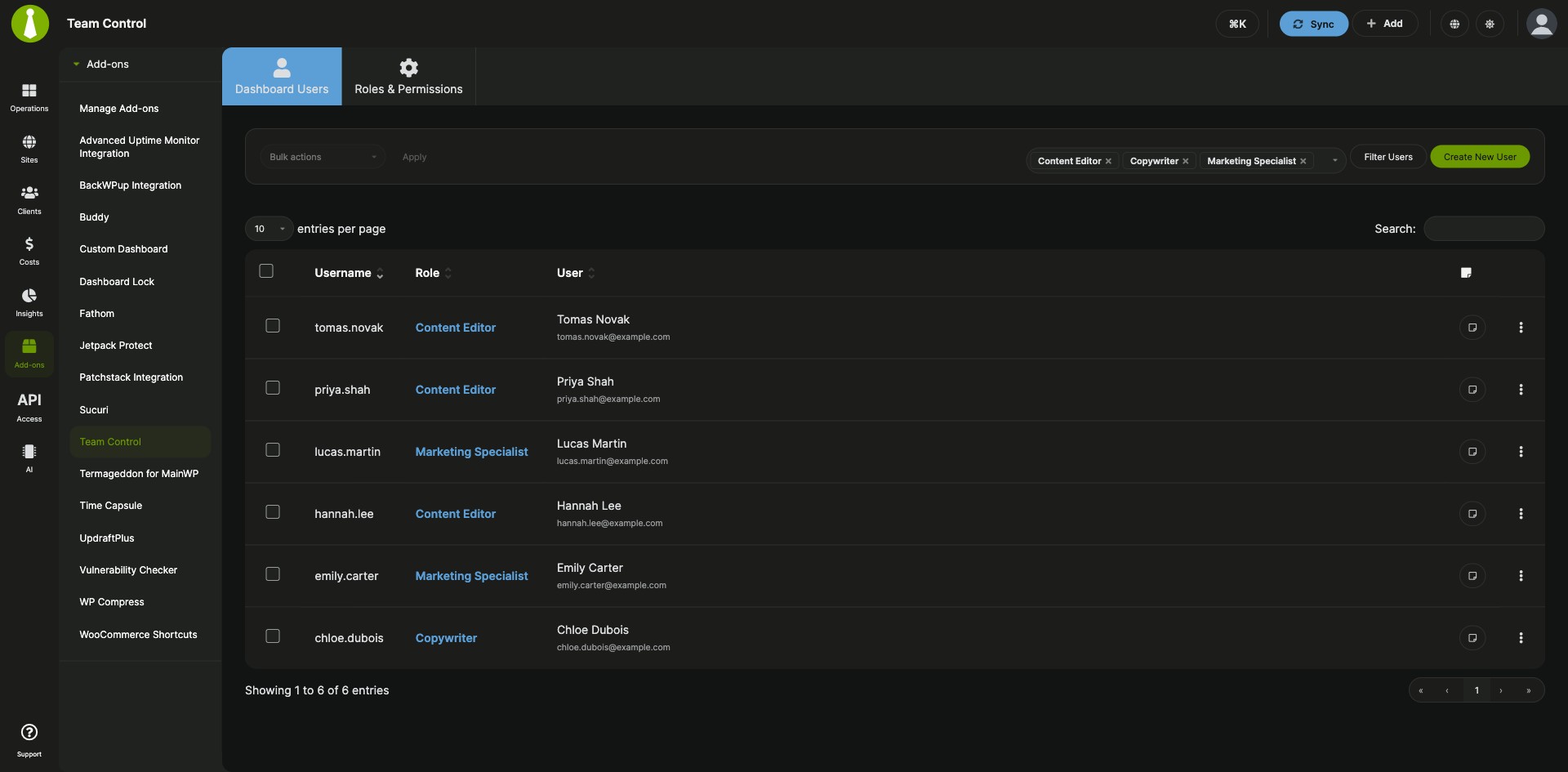
| Dashboard Users tab | Filter users by role, search the table, and change the role of one or many users with a bulk action. |
| Abilities and MCP access | Turn on Use MainWP abilities and MCP for a role so its users can run an approved set of MainWP Dashboard abilities, including through the MainWP MCP Server, within their allowed sites and permissions. |
| Owner-managed roles | Registered Team Control owners manage roles, users and user notes, on screen or through 12 Team Control abilities, where each change needs a preview and a confirmation. |
Requirements
The Team Control Extension lives on your MainWP Dashboard site, where at least one owner account manages it.
| Item | Requirement |
|---|---|
| License | MainWP Pro |
| MainWP Dashboard | An active MainWP Dashboard with Team Control 5.2 installed |
| Team Control owner | At least one Dashboard administrator who is a registered owner and keeps the administrator role rather than a Team Control custom role |
| Child sites | Connected child sites if you want to assign site access |
| Abilities and MCP (optional) | WordPress Abilities API support on your Dashboard site |
| Third-party plugins | None |
Setup: roles, permissions and users
The Team Control Extension is set up by an owner in three passes: create the role, set what it covers, and assign it to users.
Create a role
- Log in to your MainWP Dashboard as a Team Control owner and go to MainWP > Add-ons > Agency > Team Control.
- Open the Roles & Permissions tab and click Create New Role.
- Enter the role name and description, and set its permissions in the same modal.
- Click Create Role.
Set the role’s permissions and sites
- On the Roles & Permissions tab, click Edit Role / Manage Permissions for the role.
- Set the MainWP Dashboard permissions and the API Access permissions. Enable Use MainWP abilities and MCP when the role needs it.
- Choose the Allowed Add-ons, then the Allowed Sites with Select by Site or Select by Tag.
- Click Update Role.
Assign the role to users
- Open the Dashboard Users tab.
- Filter by role or search the table, then select one or more users.
- Choose Change role from the Bulk actions menu, select the role and click Apply.
Full instructions, including the 5.2 upgrade and owner recovery: Team Control Extension documentation.
Where roles apply
The Team Control Extension applies to the users of your MainWP Dashboard site, and user roles on your child sites stay as they are. Permissions decide which actions a role can perform, and Allowed Sites decides where it can perform them. Role and membership changes run one at a time in database transactions.
Team Control FAQ
Can I limit a team member to specific child sites?
Yes, the Team Control Extension limits a team member to the child sites in their role: edit the role, set Allowed Sites with Select by Site or Select by Tag, and click Update Role. The role’s permissions then apply on those sites.
What changes when I update to Team Control 5.2?
Team Control 5.2 migrates your existing roles. Migrated roles keep their saved MainWP permissions and drop their WordPress administrator capabilities, and some held or unmigrated roles can keep their previous WordPress access. From 5.2, owners manage roles and users, and permissions from several active roles combine. Roles that would be unsafe to migrate are placed On hold, and their MainWP access resumes once you restore or edit them. Back up the complete Dashboard database and keep the previous plugin files before you update, because the migration stays in place if you downgrade the plugin.
Who can manage roles and users in Team Control?
Registered owners manage roles and users in the Team Control Extension, so sign in with an existing owner account. Before any owner is registered, remove the Team Control custom role from an administrator account, keep its administrator role, and reload WordPress admin. To make another administrator an owner, use WP-CLI on your Dashboard installation. Run wp mainwp team-control-owner prepare --action=add --user_id=123 --user=admin-login, then run wp mainwp team-control-owner apply --confirmation=CONFIRMATION_TOKEN --user=admin-login within ten minutes. Replace 123 with the target user’s ID, admin-login with the administrator running the command, and CONFIRMATION_TOKEN with the token that prepare returns.
Can team members use MainWP abilities and the MainWP MCP Server?
Yes, team members can use MainWP abilities and the MainWP MCP Server when their Team Control role has Use MainWP abilities and MCP turned on under API Access. Their allowed sites and permissions still apply, and your Dashboard site needs WordPress Abilities API support.